 obscur
From the original document to text you can use with AI.
A simple, controlled process that is clear even to non-technical users.
How to use it, step by step
Paste your text or document
Paste the text, or drag in a TXT, DOCX, PDF, CSV or EML file. The file stays where it is: it is not uploaded anywhere.
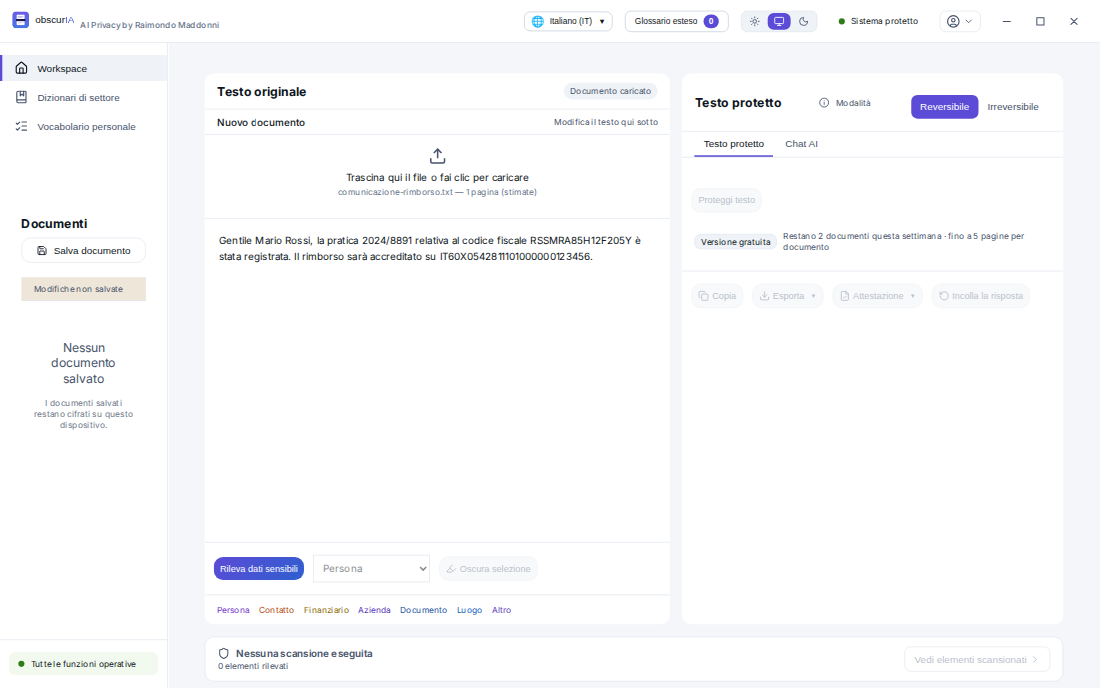
Let it detect the data
obscurIA highlights what it found — names, tax codes, IBANs, case references — and tells you which dictionaries it used. You can correct it before going on.
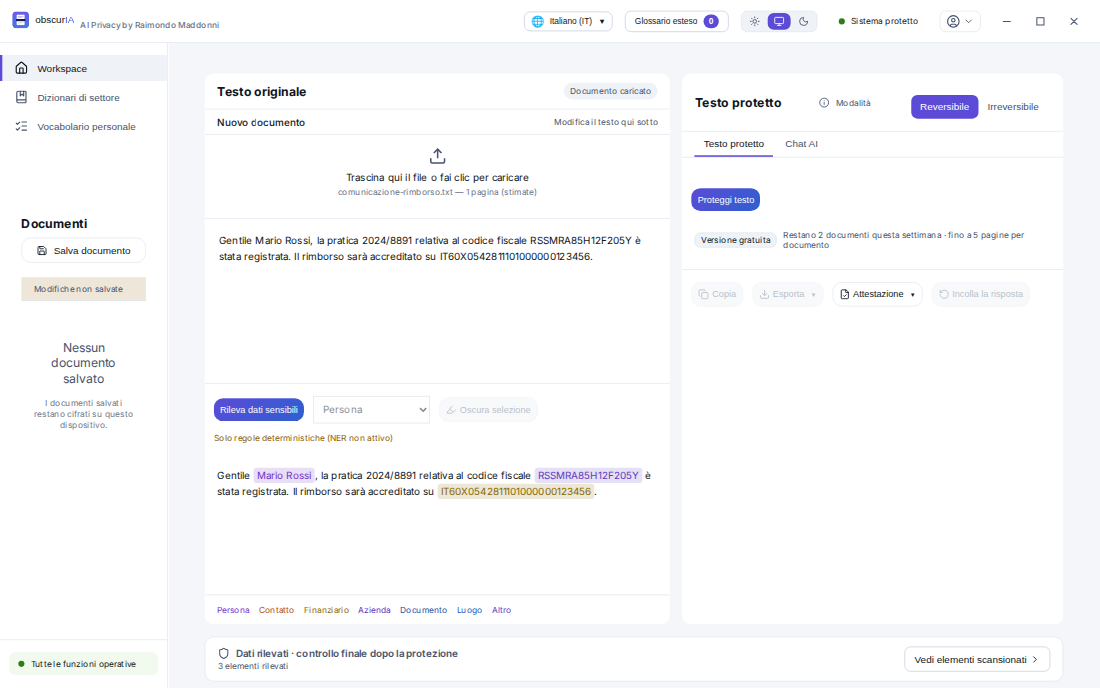
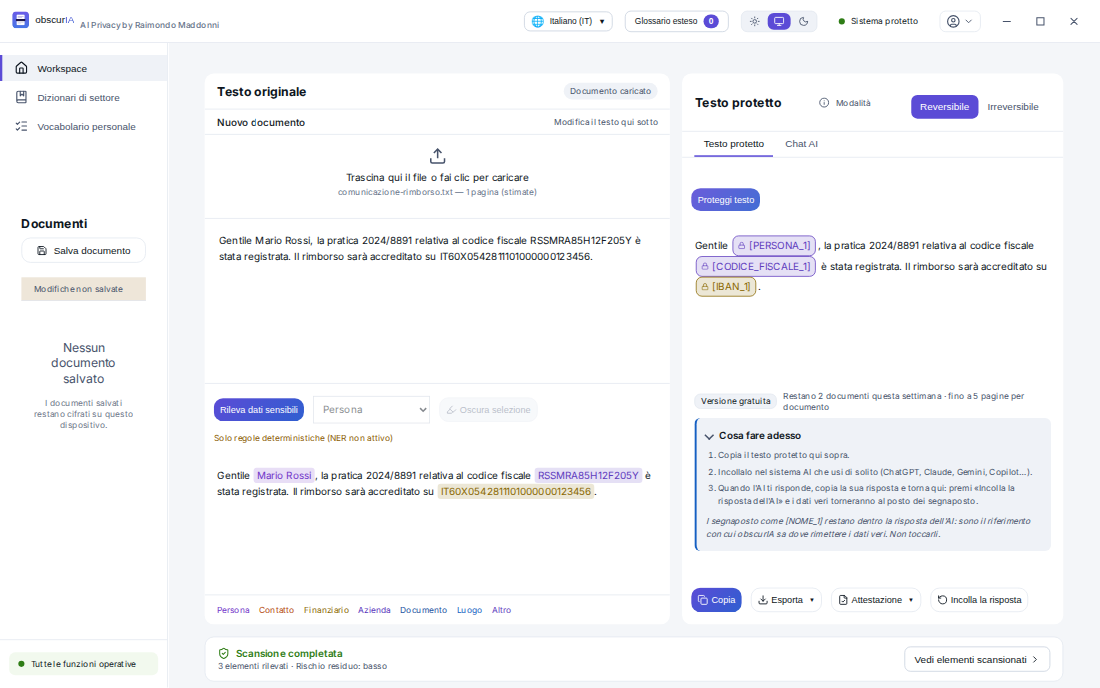
Protect and copy
Every value becomes a placeholder. Before letting you copy, obscurIA re-checks the protected text: here you see «residual risk: low». Now you can paste it into the AI tool you normally use.
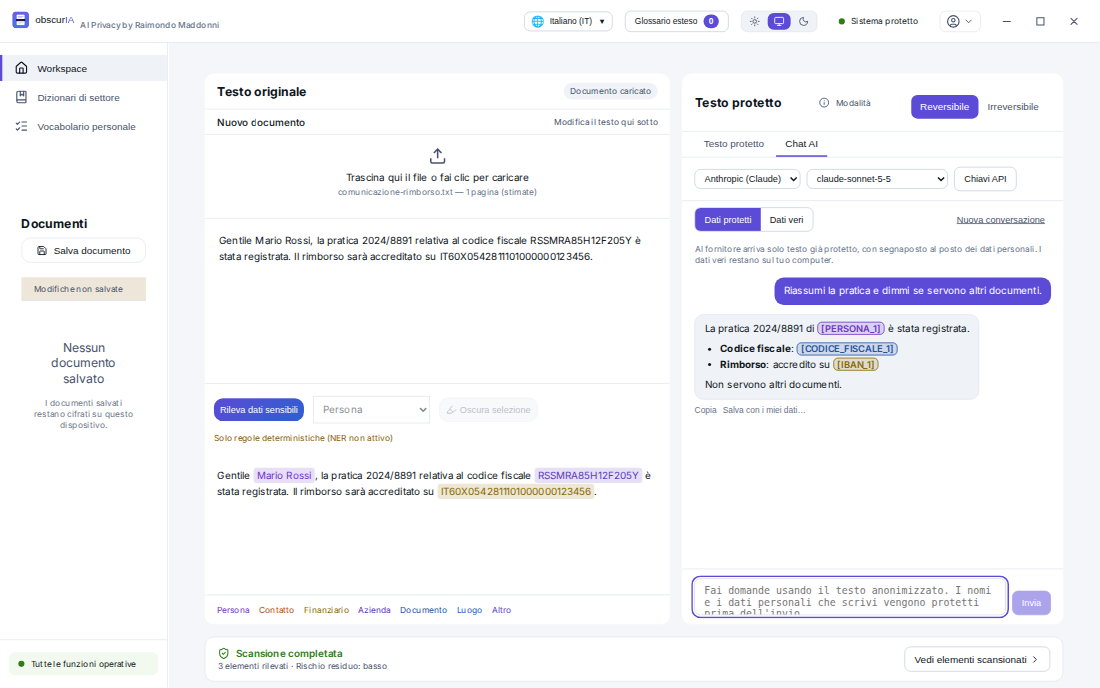
Ask the AI directly from here
Connect your own API key from OpenAI, Anthropic or Google and write in the chat: the AI works on text that is already protected and only sees the placeholders. With «Real data» you reread the conversation with your data in place. Optional: without keys, everything else works as before.
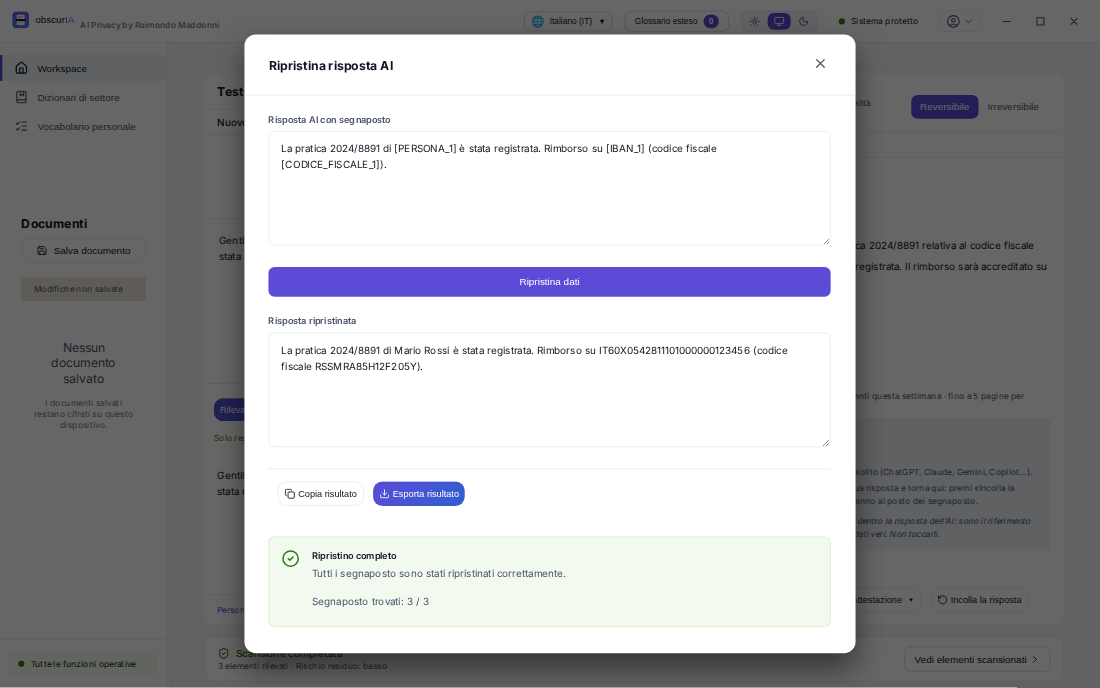
Bring the real data back into the reply
If you'd rather answer outside obscurIA, paste the reply you received elsewhere: obscurIA puts the real values back in place, values that never left your computer.
Open or paste
Upload a supported document or paste the text that must be protected.
Review what was detected
obscurIA shows the detected data. Users can confirm, correct or add items.
Protect the content
Choose pseudonymisation or anonymisation. Processing happens on the computer.
Ask the AI directly from here
Connect your own API key from OpenAI, Anthropic or Google and write in the chat: the provider only receives text that is already protected. It is optional, and everything else works without it too.
Run the final check
Before copying or exporting, obscurIA verifies that no critical data remains in clear text.
Pseudonymisation
Data is replaced with consistent placeholders. The mapping between placeholders and original values stays on the device, encrypted. When the AI response comes back, obscurIA can restore the real values.
Use this when the response needs to be complete and readable.
Anonymisation
Data is replaced and the link to the original is discarded. The operation is final: from then on the text stands on its own.
Use this when the document leaves the organisation and must stay that way.
Final check
Before copying or exporting, obscurIA re-examines the protected text and shows you what it found — including data disguised with invisible characters or with letters that resemble the expected ones.
Text leaves only after a successful check. If the examination is interrupted for any reason, obscurIA tells you and waits: better a few seconds more than a confirmation we cannot stand behind.
Supported formats
- TXT
- DOCX
- PDF, including scans
- CSV and TSV (lists and member registers)
- EML (email messages)
- Text pasted directly
A PDF made only of images is read by obscurIA itself, on your own computer. In email messages the headers are examined too — sender, recipients, subject — along with any forwarded messages inside. In lists, obscurIA reads the column headings: a «Surname» column declares surnames in every row, even when they are ordinary words no automatic recognition could tell apart.